The QuickBooks® Online Protection Gap Most Users Don’t Know About
Key Takeaways
- QuickBooks Online (QBO) does not back up individual account-level data in a way that’s recoverable by the end user.
- Under the Shared Responsibility Model, you are responsible for protecting your QBO files from human error, malicious deletion, third-party app failures, and bad CSV imports.
- Data loss from any of these scenarios can result in permanent loss without a dedicated QuickBooks Online backup file.
- Automated backup tools fill the gap left by Intuit’s® disaster recovery, giving users a practical way to quickly restore QBO data.
- Setting up QuickBooks Online backup protection doesn’t have to be complicated, but it does need to happen before data loss occurs.
If your firm or business uses QuickBooks® Online (QBO), you may assume your data is safe because it lives in the cloud. It’s a reasonable assumption, but it’s not accurate in the way most people expect.
QBO maintains disaster recovery backups of its platform. What it doesn’t do is maintain restorable, account-level backups of your individual data: your clients, transactions, invoices, deposits, and reports. According to Intuit’s terms of service (section 6.1.1), the responsibility for backing up that data falls on you.
This post covers what QuickBooks Online actually backs up, what it doesn’t, how data loss happens in the real world, and how to back up QBO files before you need to.
Does QuickBooks Online Automatically Back Up Your Data?
QBO maintains server-level backups, but they are intended to protect Intuit’s platform in the event of a data center failure or a company-wide cyberattack. They’re not designed to recover your individual account data after a localized data loss event.
If a team member deletes a client record, a phishing attack corrupts your QBO files, or a CSV import wipes out a chunk of your data, Intuit’s disaster recovery infrastructure won’t restore it. Your data is co-mingled with the data of every QBO customer. Finding and restoring your specific records from a specific point in time is, in practice, not possible through Intuit’s standard support.
The short answer: QBO saves your data, but not in a format you can access or restore yourself.
The Shared Responsibility Model: What You’re Actually Responsible For
Cloud security operates under the Shared Responsibility Model. Providers like Intuit secure the underlying infrastructure: servers, networks, and the platform itself. Customers are responsible for everything that happens within their accounts.
For QBO users, that means you own responsibility for:
- Configuring your account settings correctly.
- Managing user access and permissions.
- Training your team on security best practices.
- Protecting against data loss caused by human error, bad imports, third-party tools, and cyberattacks.
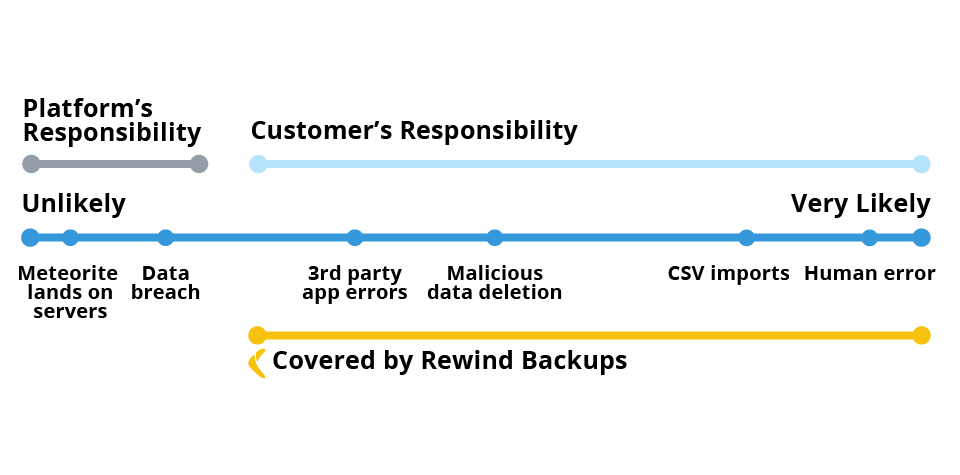
QBO’s Shared Responsibility Model specifically places the following in your court:
- Third-party app errors: If an integration syncing financial data into QBO fails or corrupts your records, Intuit won’t recover them.
- Malicious data deletion: Ransomware, phishing attacks, or an employee acting in bad faith can wipe QBO data permanently without a backup in place.
- CSV import failures: A bulk upload gone wrong can duplicate or delete significant amounts of data. That’s on you to restore.
- Human error: Accidental deletions happen. Without a QuickBooks Online backup file to restore from, they can become permanent.
Understanding this model isn’t about placing blame. It’s about knowing where your responsibility begins so you can protect your firm or business, your clients, and your data.
How QBO Data Loss Happens
Data loss in QBO doesn’t always come from a dramatic cyberattack. Often, it’s a small, ordinary mistake that compounds quickly. These are the four most common scenarios users encounter.
Scenario 1: Phishing and Cyberattacks
A team member clicks a link in an email that appears legitimate. The sender is a cybercriminal who now has access to your QBO account. Your files may be corrupted, exfiltrated, or deleted entirely. Without a recent QuickBooks Online backup file, there’s no clean version to restore.
Scenario 2: Accidental Deletion
A mis-click removes a customer record, a transaction, or an invoice. QBO doesn’t have a universal undo function for these actions. Without backup and restore capabilities, that data is gone.
Scenario 3: Failed CSV Imports
A firm or business acquires another and needs to bulk-upload data into QBO. During the import, the file contains duplicates or formatting errors. Existing records are overwritten or removed. The damage can be widespread and difficult to untangle manually.
Scenario 4: Third-party App Errors
Many firms or businesses connect QBO to practice management tools, payroll software, or data import tools. When those integrations malfunction, the data they sync or modify inside QBO can be corrupted or lost. Intuit’s platform won’t catch or reverse those changes.
In each of these scenarios, the outcome without QBO protection is the same: permanent data loss, time spent manually reconstructing records, and potential damage to client relationships.
How to Back Up QuickBooks Online Data
There are two approaches to creating a QuickBooks Online backup file: manual exports and automated backup tools. Both have a role, though they serve different purposes and offer different levels of protection.
Manual QuickBooks Online backup
Manual exports are a starting point, but they have significant limitations. You can only capture a snapshot of data at a single point in time, and exporting must be done intentionally. If data loss occurs between exports, anything created or changed since the last export is unrecoverable through this method.
Automated QBO Backup
Automated backup tools run in the background on a schedule, capturing changes to your QBO files without requiring manual action each time. Tools like Rewind Backups for QuickBooks Online pick up where Intuit’s disaster recovery leaves off, backing up more than 25 individual item types, including transactions, lists, attachments, reports, and client files.
With automated QBO protection in place, you can restore data from a specific point in time with a few clicks. You can also schedule additional backups before major changes, such as a large CSV import or a system migration, to provide a clean restore point if something goes wrong.
The practical benefit for accounting firms or businesses is continuity. When a data loss event occurs, you’re not reconstructing records from memory or spending hours recreating client data. You restore from your most recent backup and keep working.
Is There a Managed Cloud Backup Service for QuickBooks Company Files?
What distinguishes a managed backup service from a manual export or a basic automated tool is the degree of oversight and restoration capability. A managed solution continuously monitors your QBO files, maintains a versioned history of changes, and provides granular restore options so you can recover exactly what you need, from exactly when you need it, without touching unaffected data.
For accounting firms or businesses managing multiple client files across QBO, this level of QBO protection isn’t optional. A single failed import or compromised login can affect dozens of client records simultaneously.
QBO Protection Checklist: What Good Backup Looks Like
Before your next major change to a QBO file, make sure your QBO protection covers the following:
- Automated daily backups running without manual intervention
- On-demand backup capability before significant changes like imports or migrations
- Granular restore options that let you recover specific records, not just roll back the entire account
- Coverage for all major data types: transactions, lists, attachments, reports, and client files
- A tested restore process, so you know the backup actually works before you need it
- User access controls so that not everyone in your organization can delete or modify critical files
- Security awareness training for your team to reduce the risk of phishing-related data loss
QBO backup file creation is only one part of the data protection posture. Pair it with strong access controls, phishing-resistant email habits, and a clear incident response plan to reduce your exposure across the board.
Your QuickBooks Data, Your Responsibility
But You Don’t Have to Figure It Out Alone
QuickBooks® Online is a powerful platform, and the cloud offers real advantages in accessibility, collaboration, and scalability for accounting firms and businesses. But cloud hosting doesn’t mean cloud protection. Intuit secures its platform. Your QBO data is yours to protect.
Understanding the Shared Responsibility Model, knowing how data loss actually happens, and putting automated QuickBooks Online backup in place before an incident occurs are the steps that separate firms and businesses that recover quickly from those that spend weeks reconstructing client records.
QBO protection starts with knowing what you’re responsible for. From there, the right tools make it manageable.
Solutions like Rightworks Cloud for QuickBooks Online include automated Rewind backups, advanced security, multifactor authentication, and expert support built in—so the protection gaps described above are covered from day one, without requiring a separate setup or vendor relationship.
If you want to see what that looks like in practice, try it free for one month.