MFA for Accounting Firms: Requirements, Setup, and Best Practices
Accounting firms are a target. Not arbitrarily, but because of what they hold: tax returns, Social Security numbers, business financials, bank account details, and payroll records. A single compromised firm can be a gateway to dozens of client businesses at once.
Multifactor authentication, or MFA, is among the most effective controls available to protect that data.
It doesn’t matter if you’re a solo practice or a 200-person firm. The data you hold is the same. The risk is the same. This guide explains what MFA is, why federal regulators now require it, how to implement it across your systems, and what to do when something goes wrong.
Key Takeaways
- MFA blocks more than 99% of credential-based attacks by requiring a second verification step beyond a password.
- Federal regulators require MFA for any system that accesses customer financial information, covering tax preparers, CPAs, and bookkeepers.
- Authenticator apps are the right default for most firms; hardware keys are best for administrative accounts.
- For most accounting firms, MFA costs nothing: it’s included in tax platforms, Microsoft 365, and Google Workspace at no additional charge.
- Configure backup authentication methods before rollout and revoke device access immediately when staff leave.
What Is Multifactor Authentication?
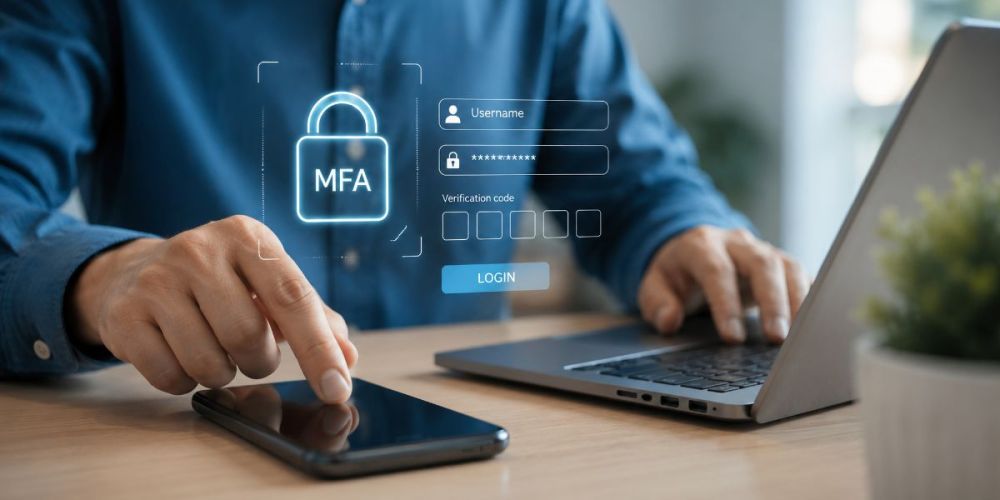
Multifactor authentication requires more than a password to log in. It adds a second verification step before access is granted.
Authentication factors fall into three categories:
- Something you know: a password or PIN
- Something you have: a phone, authenticator app, or hardware key
- Something you are: a fingerprint of Face ID
When a user logs into their tax software and receives a prompt on their phone to confirm the login, that’s MFA. Without that second factor, the stolen password is worthless.
MFA blocks more than 99% of credential-based attacks. For accounting firms handling sensitive client data, It is the highest-return security control available at any firm size.
Why Passwords Aren’t Enough
Passwords get stolen through phishing emails, through breaches at unrelated sites, through credential reuse across accounts.
The average breach goes undetected for over 300 days, meaning an attacker can be inside your firm’s system for nearly a year before anything surfaces.
Small businesses are the number one target for cyberattacks, not enterprise companies.
Ransomware struck 88% of small and medium-sized business breaches last year—more than double the 39% rate seen at large enterprises. For a small business, that’s not a hypothetical risk; it’s the most likely outcome of a breach.
A stolen password is the leading entry point for all of it. Multifactor authentication is what makes a stolen password useless.
How Attacks Happen and Where MFA Intervenes
More than 90% of cyberattacks begin with a phishing email.
A user receives a convincing message, clicks a link, and enters credentials on a fake login page. The attacker now has access.
From there, they move quietly through the network, escalating privileges, locating sensitive data, and establishing persistence, often for months before detection.
How attacks happen
The attack chain follows a predictable sequence:
1. Reconnaissance
Before making contact, an attacker studies the target. That means identifying public-facing systems, cataloging outdated or vulnerable software, and researching employees who might be susceptible to social engineering. This phase is largely passive and often goes unnoticed. The attacker is gathering intelligence, not taking action yet.
2. Initial Access
This is the point of intrusion, typically achieved through a phishing email, an exploited vulnerability, or a compromised credential. It’s the moment observation becomes active compromise, and often the only stage an organization actually sees, if they see it at all.
3. Establishing a Foothold
Once inside, the attacker’s first priority isn’t the data. It’s persistence. They’ll install backdoors, schedule recurring tasks, or deploy additional tools that preserve access even if the original entry point gets discovered and closed. This is what allows them to survive routine remediation.
4. Lateral Movement
With a foothold secured and credentials in hand, the attacker starts moving through the network: system to system, account to account, working toward higher-value targets like databases, file shares, or administrative infrastructure.
5. Execution
Only now does the attacker act on their actual objective: deploying ransomware, exfiltrating data, or disrupting operations. By the time this stage is visible, they’ve typically been operating inside the environment, undetected, for a meaningful stretch of time.
Learn more at attack.mitre.org.
Where MFA intervenes
MFA intervenes at the access stage. Even when credentials are successfully captured through phishing, the attacker can’t proceed without the second factor. The chain breaks before it can progress.
Is Multifactor Authentication Required for Accounting Firms?
MFA isn’t optional for accounting professionals. Federal regulators require it, and that requirement applies to firms of every size.
The FTC’s updated Gramm-Leach-Bliley Act Safeguards Rule requires MFA, or a documented equivalent compensating control, for any system that accesses customer financial information. This applies to tax preparers, bookkeepers, CPAs, and accounting professionals broadly.
Covered systems include tax preparation software, practice management platforms, client portals, email, and cloud hosting environments.
Firms are also required to maintain a Written Information Security Plan, or WISP, that documents the security controls in place. MFA must be reflected in that plan.
Non-compliance carries regulatory penalties. Beyond penalties, a breach triggers mandatory client notification, potential litigation, and remediation costs that most small firms aren’t equipped to absorb.
IRS Publication 4557
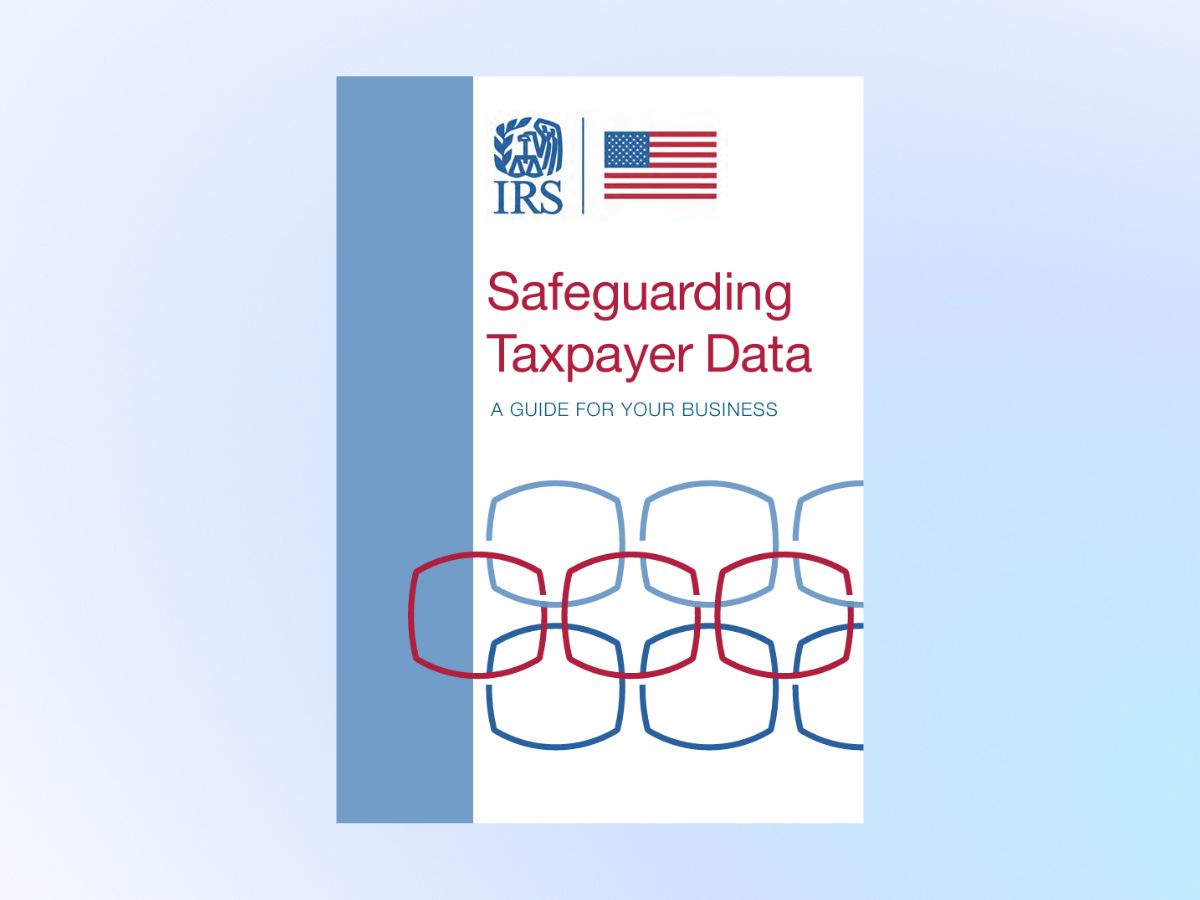
IRS Publication 4557, Safeguarding Taxpayer Data, is the IRS’s official guidance document for tax preparers on how to protect client information and comply with federal law. Its MFA requirement is direct: multifactor authentication must be enabled for anyone accessing customer information.
This requirement carries legal force. Tax return preparers fall under the Gramm-Leach-Bliley Act’s definition of “financial institutions,” placing them under FTC jurisdiction and making the Safeguards Rule’s MFA mandate binding, not advisory. Firm size isn’t an exemption. A sole practitioner and a 50-partner firm are held to the same baseline.
The consequences of non-compliance extend beyond regulatory penalties. A confirmed data breach can result in suspension of the firm’s Electronic Filing Identification Number, or EFIN, until the intrusion is identified and corrected, disrupting the firm’s ability to file returns during that investigation.
If your firm is asking whether MFA is required in 2026: it is, and has been since the FTC Safeguards Rule’s compliance deadline passed in June 2023. Firms that haven’t implemented MFA aren’t anticipating a future requirement; they’re already out of compliance.
Where to Enable MFA
If a system holds client data or provides a path to it, it requires MFA. Prioritize in this order:
- Email. The number one entry point for phishing and account takeover. Enable on Microsoft 365 or Google Workspace first.
- Tax preparation software. Drake, Lacerte, UltraTax, ProSeries, and most major platforms support MFA natively. See the section below for platform-specific setup steps.
- Practice management and document platforms.
- Client portals.
- Remote access tools. VPN, Remote Desktop, and any tool used to connect from outside the office.
- Cloud hosting environments. For firms running tax software in the cloud, the login screen is the perimeter. A compromised cloud login can expose every application and file hosted there, not just one. MFA at the cloud provider level is especially critical for this reason.
- Payroll and accounting systems.
Choosing the Right MFA Method for Your Firm
Not all MFA methods are equal. The right choice depends on the sensitivity of the system, the size of the firm, and the daily habits of staff.
| MFA Type | How It Works | Security Level | Best Use |
|---|---|---|---|
| SMS text codes | Sends a one-time code via text message. | Low | Fallback only; not for primary or high-risk access. |
| Authenticator apps | Generates 30-second codes or push notifications (Microsoft, Google, Duo). | High | Default MFA for most users and daily access. |
| Hardware keys | Physical device (e.g., YubiKey) must be present and touched/inserted. | Very High | High-privilege accounts, admin access, sensitive systems. |
| Biometric authentication | Fingerprint or Face ID, typically via a mobile authenticator app. | High (as part of app-based MFA) | Daily access on mobile devices, as part of an authenticator app workflow. |
SMS text codes
SMS text codes provide a baseline layer of protection, but are the weakest MFA option, as they’re vulnerable to SIM-swapping attacks. Text codes are appropriate as a fallback method only.
Authenticator apps
Authenticator apps (Microsoft Authenticator, Google Authenticator, Duo) are the standard for most firms.
They generate a time-sensitive code every 30 seconds, or send a push notification for one-tap approval.
They’re secure, practical, and low-friction for daily use.
Hardware keys
Hardware keys (such as YubiKey) are the most secure option. These require a physical device for authentication and are best suited for high-privilege accounts or for especially sensitive access points.
For most accounting firms, authenticator apps with push notifications provide the right balance of security and usability.
Biometric authentication
Biometric methods, such as fingerprint or Face ID, are typically available as part of mobile authenticator apps rather than as standalone MFA solutions. When a staff member uses Face ID to approve a push notification in Microsoft Authenticator, biometrics and app-based MFA are working together.
Biometrics alone, on a personal device, don’t satisfy MFA requirements for firm-level systems, but they add a useful layer of protection when used as part of an authenticator app workflow.
MFA vs. Single Sign-On: What’s the Difference?
Single sign-on, or SSO, lets users authenticate once and access multiple applications without logging in separately to each one. It simplifies the user experience and reduces the number of credentials staff need to manage.
MFA and SSO solve different problems, and they’re most effective when used together.
SSO without MFA is a significant risk: if the single authentication point is compromised, every connected application is exposed. MFA without SSO means staff authenticate separately to each system, which increases friction and can lead to workarounds.
The combination of MFA protecting an SSO login gives accounting firms both security and usability. Staff log in once with a strong second factor, and that authentication carries across connected platforms for the session.
Most major practice management platforms support SSO integration. If yours does, enabling MFA on the SSO provider is the most efficient single security step available.
The Human Factor
Technology controls matter, but the human is consistently the most targeted element of any security system.
Attackers engineer urgency, authority, and familiarity to bypass rational thinking. A well-crafted phishing email doesn’t look like a threat. It looks like a message from a known vendor, a colleague, or a software provider.
Security awareness training is valuable and should be part of every firm’s program, but training alone cannot eliminate human error. MFA is the control that contains the damage when an error occurs, regardless of the firm size, staff experience level, or how robust the training program is.
When staff understand that MFA protects client data, not just the firm’s systems, adoption improves. The friction is minimal.
An authenticator app push notification takes two seconds; a break recovery takes months.
What Happens When You Lose Your MFA Device?
MFA recovery planning is often skipped during implementation and then becomes urgent the first time a staff member loses their phone or leaves the firm. Planning for it in advance takes minutes.
Before rollout, configure at least one backup authentication method for every user account. Most platforms support backup codes, a secondary email address, or an alternate device. Store printed backup codes securely and separately from the primary device.
When a device is lost or stolen, the firm administrator should immediately revoke that device’s authentication access through the relevant platform’s admin console. Microsoft 365 and Google Workspace both allow administrators to invalidate active sessions and require reauthentication across all devices.
When a staff member leaves, device revocation should be part of the offboarding checklist alongside account deactivation. An active MFA-enrolled device belonging to a former employee is a live access risk.
What Does MFA Cost for an Accounting Firm?
For most accounting firms, the core cost of MFA is zero.
The major tax platforms, including Drake, ProSeries, Lacerte, and UltraTax, include MFA as part of the base product. Microsoft 365 and Google Workspace include MFA in every plan tier. Microsoft Authenticator and Google Authenticator are free to download and use.
Where MFA costs may arise:
- Hardware keys, such as YubiKey, typically run between $25 and $60 per key. Firms deploying them for administrative accounts or high-privilege users should budget two keys per person: one primary and one backup.
- Third-party identity management platforms, such as Duo Security, offer free tiers for small teams and paid plans with additional features. Pricing scales by user count and feature level.
MFA Implementation Checklist
MFA implementation doesn’t require a large IT budget or a dedicated security team. A clear plan and consistent execution are enough.
- Inventory every system staff accesses that touches client data.
- Confirm MFA support with each vendor. Most major platforms include it at no additional cost.
- Select an authenticator app and standardize it across the firm.
- Configure at least one backup authentication method for every user account before go-live.
- Enable MFA on email and remote access first.
- Walk all staff through setup before go-live, plan for roughly 15 minutes per person.
- Document the MFA policy in the firm’s WISP.
- Establish an offboarding process that includes device revocation for departing staff.
An Afternoon Now or a Crisis Later?
The case for multifactor authentication isn’t complicated. Federal law requires it, the cost for most firms is zero, and a full rollout for a 10-person team takes an afternoon. What’s complicated is recovering from a breach that MFA would have prevented: notifying clients, working through an EFIN suspension, and absorbing costs that most small firms aren’t positioned to absorb.
Every system that holds client data or provides a path to it is a door. MFA is what keeps those doors locked when a password is compromised, which, for firms holding the volume of sensitive information that accounting firms do, is a matter of when, not if.
Start with email. Enable MFA on your tax software. Configure backup authentication before you go live. Document it in your WISP. The checklist above covers the rest.
For a broader look at what a complete cybersecurity program looks like for accounting firms, from Security Awareness Training to incident response to vendor oversight, the guide below covers the full picture.